
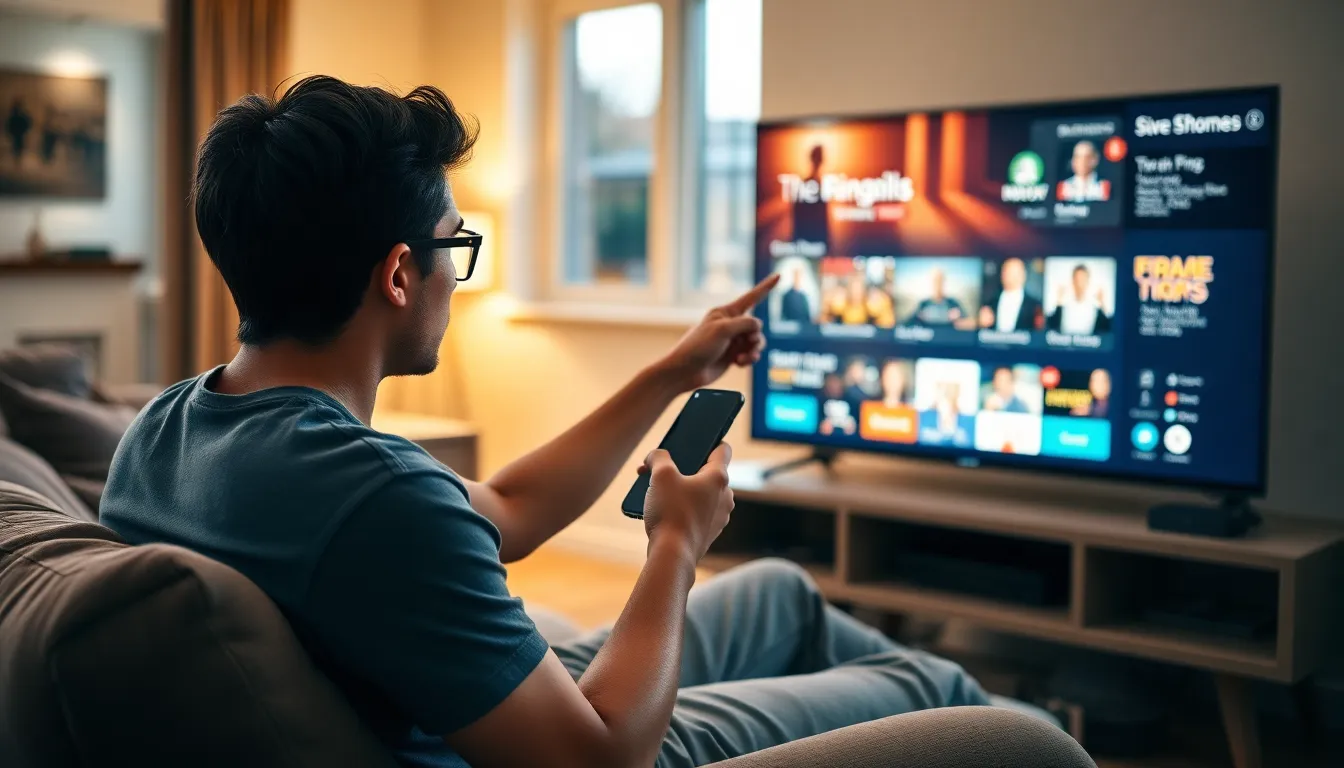
Imagine lounging on your couch, ready to binge-watch your favorite show, but your iPhone screen feels like a tiny window into a vast ocean of entertainment. Why squint when you can cast your iPhone to Fire TV and turn that small screen into a cinematic experience? It’s like upgrading from a snack-sized appetizer to a full-course meal.
Table of Contents
ToggleUnderstanding Casting from iPhone to Fire TV
Casting from an iPhone to Fire TV provides an effortless way to enjoy content on a larger screen. This simple process allows users to sync their devices wirelessly. Several methods exist for connecting an iPhone to Fire TV.
AirPlay serves as one of the primary options. AirPlay enables direct streaming from compatible iPhones to devices that support it. Users can find numerous apps that utilize AirPlay for seamless content sharing.
Another popular method involves using third-party apps. Apps like AllCast or Video & TV Cast allow users to cast media from their iPhones to Fire TV. Users simply need to download the desired app on their iPhone, connect to the same Wi-Fi network as their Fire TV, then follow the app’s instructions.
Setting up these connections requires only a few straightforward steps. First, ensure both the iPhone and Fire TV are on the same Wi-Fi network. Next, open the desired app on the iPhone and locate the cast option. Selecting the Fire TV from the list of available devices initiates the casting process.
Keep in mind that not all video content supports casting features. Streaming services often have their own protocols in place. Users should confirm compatibility with their desired apps before attempting to cast content.
Overall, understanding the various methods for casting enables users to maximize their viewing experience. Choosing the right approach depends on individual preferences and available apps. Each method provides an opportunity to enhance entertainment through a bigger screen.
Requirements for Casting
Casting from an iPhone to a Fire TV requires specific devices and applications for a seamless experience.
Compatible Devices
Fire TV models like Fire TV Stick, Fire TV Cube, and Fire TV Edition TVs facilitate casting. iPhone models running iOS 12 or later connect easily. Wi-Fi connection is essential for both devices to communicate effectively. Ensure the iPhone and Fire TV are on the same network. Compatibility checks may apply, so reference device specifications for optimal functionality.
Required Apps
AirPlay serves as the primary method for casting, offering direct streaming without extra software. Users can download third-party apps like AllCast or Video & TV Cast from the App Store for additional features. These apps enhance media casting if native options don’t suffice. Make sure to install any necessary updates for the best performance. Regularly check for compatibility with content, as limitations may exist based on licensing and app support.
Step-by-Step Guide to Casting
Casting from an iPhone to a Fire TV is straightforward. Follow these steps for a seamless experience.
Setting Up Your Fire TV
First, power on your Fire TV and ensure it connects to your Wi-Fi. Next, grab the Fire TV remote and navigate to Settings. Open Device and Software, then select Network. Confirm that your Fire TV is on the same Wi-Fi network as your iPhone. Checking this simple detail avoids connectivity issues during casting. Finally, ensure your Fire TV has updated software. Updates enhance performance and maintain compatibility with casting features.
Using AirPlay to Cast
To use AirPlay, swipe down from the top right corner of your iPhone screen. This action opens the Control Center. Next, tap on Screen Mirroring and look for your Fire TV in the list. Once the device appears, select it to establish the connection. During this process, an AirPlay code may appear on your TV. Enter this code on your iPhone to start casting. Following these steps allows users to stream videos, photos, and music effectively. Adjust your device settings if the quality isn’t optimal, as this enhances the overall viewing experience.
Troubleshooting Common Issues
Casting from an iPhone to a Fire TV may encounter a few common issues. Addressing these problems quickly can enhance your streaming experience.
Connection Problems
Connection issues often arise from incorrect Wi-Fi settings. Ensure both the iPhone and Fire TV connect to the same network. Restarting both devices may also resolve connectivity failures. If casting remains unsuccessful, consider disabling VPNs or firewalls that could block the connection. Checking for available software updates can further improve device compatibility, facilitating a smoother connection.
Audio/Video Quality Issues
Audio and video quality issues may stem from poor Wi-Fi signals. Moving closer to the router often increases signal strength, enhancing streaming quality. Additionally, background applications on the iPhone might affect performance; closing unnecessary apps can help. Checking video quality settings in the casting app also assists in optimizing playback, ensuring a more enjoyable viewing experience. If content still appears choppy, restarting both devices often resets connections and improves overall quality.
Alternative Methods for Screen Sharing
Using alternative methods for screen sharing provides flexibility for iPhone users. One effective option involves using the Amazon Fire TV app, which allows users to control their Fire TV and cast content directly from their phones. This app is compatible with iPhones running iOS 12 or later, enabling easy access to multimedia content.
Another method is utilizing the Amazon Prime Video app. With this app, users can stream videos directly from their iPhone to Fire TV. Users simply need to open the app, select the desired video, and tap the casting icon to begin streaming.
Third-party apps like Netflix and YouTube also support casting from iPhones to Fire TV. In these apps, users tap the cast icon within the video player to connect to their Fire TV. This method ensures a seamless viewing experience for popular streaming services.
For users seeking a wired connection, an HDMI adapter provides another alternative. This method requires a Lightning to HDMI cable, allowing users to plug their iPhone directly into Fire TV. Once connected, users can share their screens without relying on Wi-Fi connectivity.
Additionally, some users might explore casting through Google Chromecast if available. By using compatible apps, users can cast content to Fire TV using Chromecast features. This method offers another avenue for sharing content effectively.
Specific device requirements should be kept in mind when choosing a method for casting. Each approach varies slightly in its setup and compatibility. Users must verify that their apps and devices are updated to ensure optimal functionality. Overall, these alternative methods enhance the streaming experience, providing choices that accommodate different preferences for content sharing.
Casting from an iPhone to Fire TV opens up a world of entertainment possibilities. With easy methods like AirPlay and various third-party apps, users can enjoy their favorite content on a larger screen. By ensuring both devices are connected to the same Wi-Fi network and following simple setup steps, anyone can enhance their viewing experience.
Troubleshooting common issues is straightforward and can significantly improve streaming quality. Whether opting for wireless methods or a wired connection with an HDMI adapter, flexibility is key. The ability to cast seamlessly not only elevates enjoyment but also makes sharing moments with friends and family effortless. Embracing these techniques will surely transform how users interact with their media.