
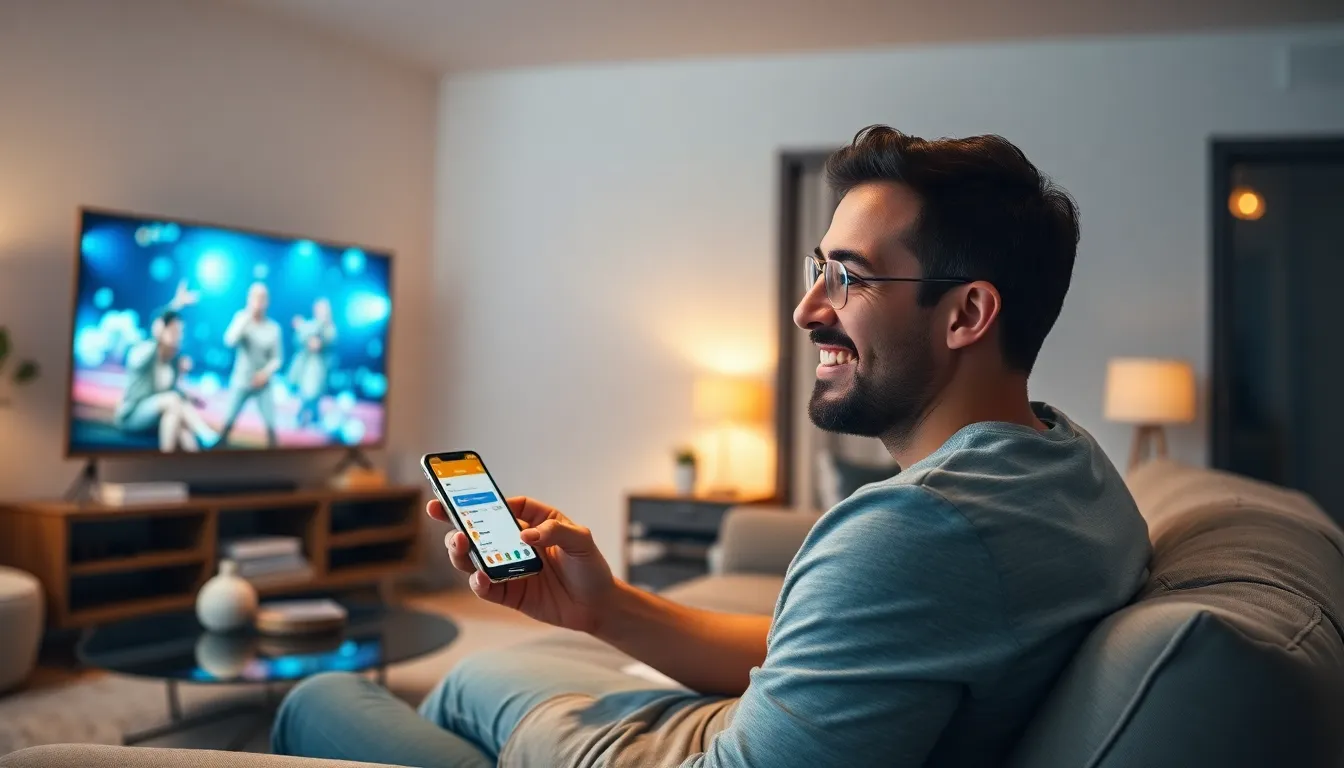
Imagine this: you’ve captured the perfect video on your iPhone, and now you want to share it with the world—or at least your living room full of friends. Watching videos on a tiny screen can feel like trying to enjoy a gourmet meal through a straw. Thankfully, there are simple ways to beam those iPhone masterpieces onto your TV, turning your living room into a mini theater.
Whether you’re planning a movie marathon or just want to show off that adorable puppy video, connecting your iPhone to your TV can elevate your viewing experience. With a few easy steps, you can ditch the squinting and embrace the big screen. Get ready to impress your friends and family as you transform your iPhone clips into a cinematic experience that’s sure to leave them wanting more.
Table of Contents
ToggleUnderstanding the Basics
Connecting an iPhone to a TV for video playback involves understanding compatibility and required accessories. These elements simplify enjoying iPhone videos on a larger screen.
Compatibility of iPhone with TVs
Most modern TVs support connections with iPhones through various methods. Smart TVs often come equipped with AirPlay capabilities, enabling wireless streaming of videos directly from the iPhone. Apple TV also facilitates seamless video sharing. Older TV models might require a Lightning to HDMI adapter to connect the iPhone using a cable. It’s crucial to know the TV model to determine compatible connection options.
Required Accessories for Streaming
Necessary accessories can enhance the streaming experience between an iPhone and a TV. For wireless streaming, using an Apple TV remains a popular choice, while an HDMI adapter provides a direct connection for non-smart TVs. Apple’s Lightning Digital AV Adapter supports both video and audio, making it a versatile option. Additionally, ensure a strong Wi-Fi connection for optimal streaming performance. The right accessories play a vital role in achieving that mini theater experience.
Methods to Watch iPhone Videos on TV
Several methods exist for watching iPhone videos on a TV, each catering to different user preferences and device configurations.
Using AirPlay
AirPlay enables wireless streaming from an iPhone to an Apple TV or AirPlay-compatible smart TV. First, both devices must connect to the same Wi-Fi network. Users can then swipe down on the iPhone and select the Screen Mirroring option. This feature allows them to choose their TV from the list of available devices. As a result, videos can appear on the larger screen with minimal setup. AirPlay supports high-quality streaming and allows for hassle-free sharing of video content with friends and family.
Connecting with HDMI Cable
Connecting an iPhone to a TV via HDMI offers a straightforward, wired solution. The process begins with obtaining a Lightning Digital AV Adapter, which connects to the iPhone’s charging port. Users can then plug in an HDMI cable to the adapter and connect the other end to an HDMI port on the TV. Once connected, the TV should automatically recognize the iPhone as a video source. This method ensures a stable connection without lag, delivering videos in high definition.
Utilizing Google Chromecast
Google Chromecast provides an alternative for users preferring a wireless connection not dependent on Apple devices. Users should first set up the Chromecast on their TV and ensure it connects to the same Wi-Fi network as the iPhone. After opening compatible apps, users can look for the Cast icon to send video content directly to the TV. Chromecast can stream various app content, making it versatile for watching different types of videos. This method enhances accessibility and convenience, particularly for non-Apple ecosystem users.
Troubleshooting Common Issues
Occasionally, users encounter issues while trying to watch iPhone videos on a TV. Addressing these common problems promptly ensures a smoother viewing experience.
Connection Problems
Connection difficulties often arise due to mismatched settings. Ensure both the iPhone and the TV are on the same Wi-Fi network for seamless AirPlay interactions. Users should also check that Bluetooth is enabled and turned on for better connectivity. For wired connections, verify the HDMI port and adapter functionality. Damaged cables can disrupt the signal as well. In addition, restarting devices can resolve temporary connectivity issues, establishing a fresh connection. Updating the iOS software may also fix bugs that affect streaming capabilities.
Video Quality Concerns
Video quality can suffer for various reasons when streaming from an iPhone to a TV. Users might experience lower resolution due to a weak Wi-Fi signal impacting the connection. To enhance video clarity, it’s essential to stream in high-definition mode through both AirPlay and HDMI connections. Adjusting settings within the video application can also help. Users should consider checking the display settings on the TV to ensure it’s set to the appropriate resolution. Finally, keeping the iPhone storage optimized by closing unused apps can improve overall performance and visual quality.
Alternative Streaming Options
Various alternatives exist for streaming iPhone videos to a TV beyond the standard methods. Exploring these options enhances flexibility and user experience.
Third-Party Apps
Numerous third-party apps facilitate video streaming from an iPhone to a TV. Applications like VLC, AllCast, and Plex allow for seamless integration. These apps enable users to connect to smart TVs and streaming devices without needing additional hardware. Specific configurations depend on the app and device compatibility. Some applications support the casting of media files directly from the phone, simplifying the process even more. Installing one of these apps can expand the range of video content available for viewing.
Smart TV Features
Modern smart TVs come equipped with various built-in features enhancing iPhone video playback. Many smart TV models support screen mirroring directly from the device settings. Some provide native support for platforms such as YouTube or Netflix, allowing direct streaming without an Apple device. These TVs often include integrated apps that make accessing content faster and easier. Without external devices, users can stream videos directly by selecting the desired app on their TV and launching it from the iPhone. Utilizing these features can maximize the entertainment experience.
Watching iPhone videos on a TV opens up a world of shared experiences and enhanced enjoyment. By following the outlined methods users can easily connect their devices and elevate their video viewing. Whether opting for a wireless solution like AirPlay or a wired connection through an HDMI adapter there’s a method to suit every preference.
Addressing common issues ensures a smooth experience while exploring alternative streaming options adds versatility. With the right setup users can transform their living rooms into a mini theater perfect for any occasion. Embracing these techniques not only makes sharing memories easier but also enriches the overall entertainment experience.